
FFXIV FF16 Crossover Event 2026: Dates, Quests & Rewards
The FFXIV FF16 crossover returns November 18–December 9, 2026. Learn about event requirements, quests, Torgal mount, glamour, and rewards.
When it comes to Final Fantasy XIV, the Housing system is one of the most important features. Almost all players want to have their own houses and decorate them according to what they like. Therefore, Mmogah (No.1 ffxiv gil selling website in google) will be glad to share some decoration guides written by a professional called Dancetwist, and we hope they help improve your styles.
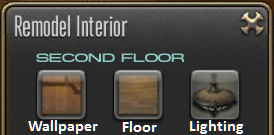
The starting point for most house owners is the Remodel menu, which allows you to change structural elements of a room like wallpaper, flooring, and lighting. All items used here are single-use only, but you can preview the results (and even interact with them) before confirming the changes.
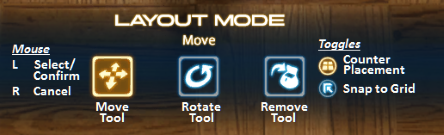
The interface that we’re most interested in is the Housing menu, which offers a variety of tools to place all the elements of your decorating project. The primary ones are the Move Tool for X – Y – Z placement of items in valid locations, the Rotate Tool for spinning items on either the X or Z axis depending on type, and the Remove Tool for picking items up again.
Two additional options are available, and these serve important roles in a lot of advanced decorating projects. The Counter Placement toggle determines whether your Move Tool will look for valid surfaces (such as counters or walls) to place objects on, or bypass those to place objects on the foundational floor and walls of the room. The Align to Grid toggle switches between precise and grid-based mouse movements with the Move Tool and Rotate Tool.
Tip: The grid can be helpful for aligning furniture consistently, but decorating often needs a finer touch.
Your object should remain floating in the air, right where you placed it! While this may seem like a simple trick, it opens the door to a lot of creative combinations that wouldn’t be possible otherwise—so think of this as your biggest tool as a decorator!
When you place the shorter table or wall shelf under your floating object, the object will re-link with the surface and behave as if you had just placed it on top—even though it’s still hovering above! By repeating this process a few times, you can use it to extend items anywhere you want in a house, including staircases, ceilings, upper stories of large rooms, and more.
Next time you feel like relaxing, just /sit near your target furnishing to sit directly on it! Your character will interact with the furnishing exactly as if it were a chair or bed instead. You may need to test it out a few times to find the comfiest spot, but it should work for any character race or height if you follow the blueprints below.
When you exit the housing interface, the wall-mounted object will attempt to “autosnap” back to the foundational wall if it was Floating close enough. Fixed features are entirely ignored when it does this, so the wall-mounted object will now be set inside the window, door, or pillar as if it were a normal wall!
Warning: The Move Tool can’t make positioning adjustments inside a fixed feature, so any corrections you want to make to the final location will require retrying from the partition.
If you chose a wall-facing angle to combine with the Snap-Behind technique, the wall-mounted object will attempt to re-align with the foundational wall if any part of it is inside the autosnap region (excluding the anchor path). Otherwise, your object will remain Floating at your desired angle regardless of where the foundational walls or other surfaces are!
Your tabletop objects should stay right where you positioned them—and still be upside-down! The tabletop objects are now in a special “semi-persistent” state where you can see and interact with them, including /gpose and screenshots, but they’ll eventually revert to their original positions on exiting the zone. This can unlock all sorts of creative design ideas, but there’s still a lot more you can do with it!
7) Instead of placing a Glade Partition, use the Move Tool to hover your wall shelf over all sorts of surfaces around the foundational walls and fixed features of your house. The layout varies for each house size and residential district, but many features will produce their own angle zones at a variety of different orientations!
8) Once you have identified an angle zone of interest, hover the wall shelf over it again so that it shows the angled orientation.
9) If you can draw a straight line from the orientation to your desired location, estimate the distance required and Cancel shelf placement.
10) At the original positions, use the Levitating technique from our first guide to raise your tabletop objects approximately the same distance above the wall shelf. Return to hovering over the angle zone afterward.
11) If your desired position is still out of reach from the angle zone, position your camera so that either the floor, a set of stairs, or the ceiling appears directly adjacent to it.
12) Use the Move Tool to drag your wall shelf from the angle zone onto one of these surfaces. If you avoided touching any other wall surfaces, the wall shelf should “transfer” over to it while still showing an angled orientation.
13) Reposition your wall shelf along the new surface until your tabletop objects reach the desired position. You will need to avoid touching any walls or fixed features while doing this, but you can “transfer” to other floors, stairways, or ceilings multiple times if needed.
14) Once you’re there, disable Counter Placement and Cancel your shelf placement. It’s done!
The Remodel menu changes structural elements of a room like wallpaper, flooring and lighting, using single-use items you can preview first. The Housing menu offers the tools to place all the elements of your decorating project, such as the Move, Rotate and Remove Tools.
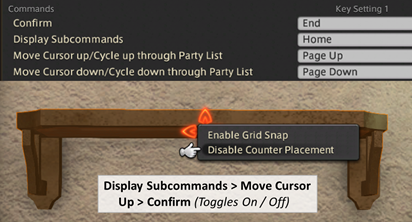
With Counter Placement enabled, place an object on a table, wall or other surface, disable Counter Placement, Select the object and Cancel it, then pull the table or wall away before turning Counter Placement on again. The object stays floating where you placed it.
It determines whether your Move Tool looks for valid surfaces such as counters or walls to place objects on, or bypasses them to place objects on the foundational floor and walls of the room.
Yes. Hide a smaller chair or bed inside a solid furnishing, then /sit near the furnishing. Your character will interact with it exactly as if it were a chair or bed.
Only for a while. They are in a “semi-persistent” state: you can see and interact with them, including /gpose and screenshots, but they’ll eventually revert to their original positions on exiting the zone.
Saving gil for a well-decorated house? Lastly, I want to remind all players who want to own a well-decorated house to save enough gil in Stormblood. Those who have enough time can grind gil in person, but those who have no time have to buy gil from a reliable and professional gil selling website. If you are the latter, you could read the related news below, which may help you.
Buy FFXIV GilThe FFXIV FF16 crossover returns November 18–December 9, 2026. Learn about event requirements, quests, Torgal mount, glamour, and rewards.

Explore the upcoming FFXIV 8.1 housing update, featuring customizable home interiors, free furniture placement, and plans to make housing more accessible to players. Discover all the major changes revealed at FanFest Tokyo and what they mean for housing enthusiasts.

Get a complete recap of the FFXIV Evercold JP Fan Festival keynote, including the expansion's release date, new ranged DPS job, seasonal progression system, upcoming raids, battle content, and major gameplay updates. Discover what awaits players in the next FFXIV expansion.

Learn how to score higher in FFXIV Crucible of the Unbroken Rankings with Patch 7.57 scoring changes, familiar selection tips, HP management strategies, and key bonuses to improve your leaderboard performance.